• We’re currently investigating an issue related to the forum theme and styling that is impacting page layout and visual formatting. The problem has been identified, and we are actively working on a resolution. There is no impact to user data or functionality, this is strictly a front-end display issue. We’ll post an update once the fix has been deployed. Thanks for your patience while we get this sorted.

Question Windows 11 assigned many drive letters

t4d

Member
I upgraded my system several months ago with some new hardware, and went from Windows 10 to Windows 11.
I have 3 SSDs:
  1. a new clean 1 TB SSD in the primary M.2 slot on the mobo
  2. a 500 GB SSD in the secondary M.2 drive on the mobo (this was previously my c: drive)
  3. a 128 GB SATA drive (this had also been a drive on my previous build)
The system also has a DVD drive.

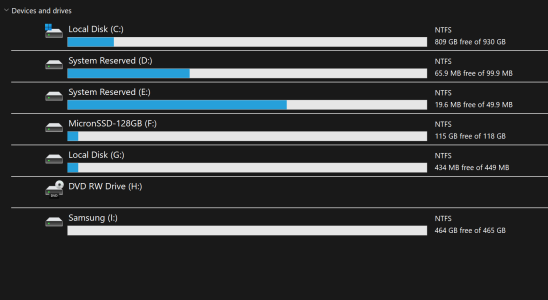
After the Windows 11 install, I expected to see 4 drives listed in File Explorer, but it shows a total of 7 drives.
Screenshot 2023-08-28 124812.png

I'm not able to ascertain how the drive letters were assigned. Because the 1 TB drive is in the primary M.2 slot, I'm sure that it is the C: drive, but are the D: drive and the E: drive also part of the 1 TB drive?
Drive F: is the 128 GB SSD, but what is drive G:? It simply says "Local Disk".

Also, Windows seems to have assigned the DVD to drive H:, and then assigned the I: drive for the 500 GB SSD, even though it is in the seconday M.2 slot on the mobo.

All this was done several months ago and the computer is working fine. Will someone kindly help to make sense of this? I'm confused.
 
Go into disk management and you can figure it out. Windows installs by default have several partitions but only show you one as the others are hidden while running.

I'd copy my data to the new 1tb drive and then delete all of the partitions from the old disks and create a large single partition out of each disk.
 
Once you figure out which drives are which, and you only have drives installed that you intend keeping a while, there is a useful utility called DriveCleanup. It will get rid of any drives which windows has given letters if they are not actually installed. A lot quicker than doing it manually. Here is the web page (look about halfway down for drivecleanup).

 
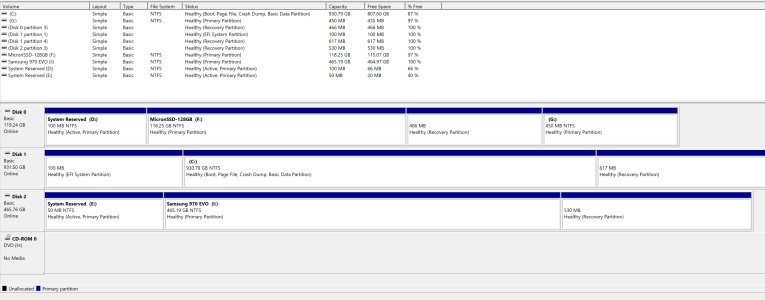
I'm adding a screenshot of disk management to show the current situation........I find it confusing.
Screenshot 2023-08-29 215401.png
 
1693366442691.png

Disk 1 is your boot drive. Don't mess with anything on that.

You can delete drive D, recovery partition and drive G on Disk 0.

You can delete drive E and recovery partition on Disk 2.

But I'm assuming that disk 0 and 2 were not connected when you installed Windows on disk 1. If they were connected, deleting may lead to unbootable system because Windows bootloader may be referring to some System Reserved drive on disk 0 or 2.
 
It looks like you never fully wiped the drives that used to be system drives in your old machines, so you were left with the boot and recovery partitions.

One way to quickly clean that up would be to delete all the partitions on those drives, then remake a single partition on each drive, then reletter your DVD drive. You might need to wipe the recovery partitions using an elevated/administrator command prompt (I ran into this similar issue a few weeks ago, but found some easy to follow instructions online, since some of the partitions couldn't be blown out by disk manager).

Edit:
I followed the diskpart instructions on a site like this to delete the tiny Windows-created partitions on an old system-booting SSD I repurposed as a backup drive: https://www.ubackup.com/windows-11/delete-recovery-partition-windows-11.html
 
Last edited:
Back
Top